How to Build a Video Content Calendar (With Template)
Build a video content calendar that sticks: a copy-ready fields table, a template you can paste into a spreadsheet, and how to fill it with repurposed clips.
By the Recapo.ai Editorial Team · Fact-checked July 10, 2026
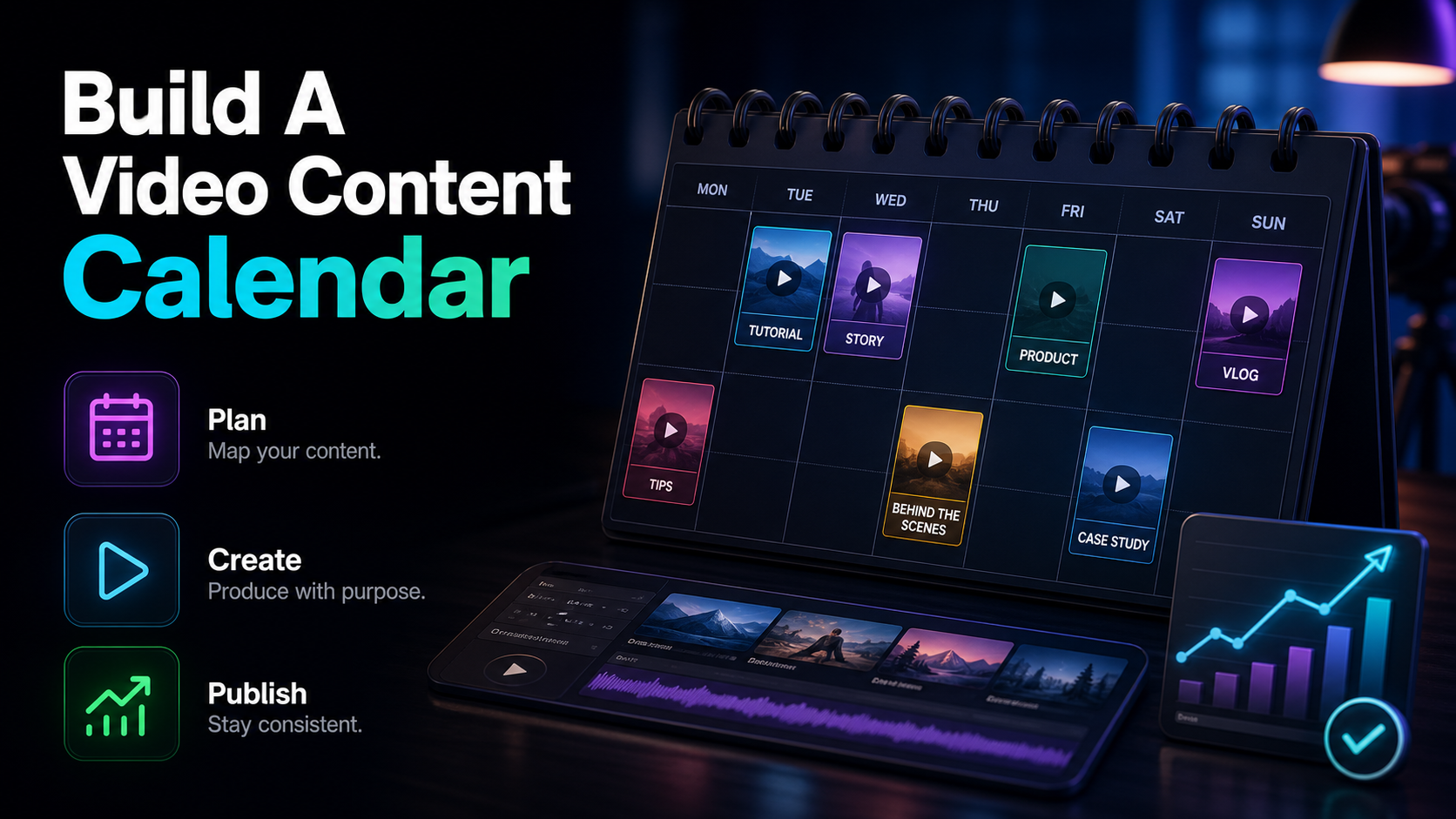
A video content calendar is the one document that turns "I should post more" into a schedule you can actually keep. This guide is deliberately template-first: you'll get a copy-ready fields table to paste into a spreadsheet in two minutes, a simple way to set your cadence from your real capacity instead of wishful thinking, and the step most planning guides bury — how to fill the calendar with clips repurposed from one long video so you're never staring at empty cells on a Sunday night. No theory-for-theory's-sake; just the fields, the tool choice, and the workflow that keeps the calendar full.
Most creators abandon their calendar not from laziness but because it plans slots it can't fill — you commit to five posts a week, then Wednesday arrives with nothing shot. So this guide treats planning and production as one loop: the template says what to make, and a repeatable repurposing step says where the raw material comes from. Get both right and the calendar stops being a guilt tracker and becomes a production line.
Fact-check note: Platform rules and product limits were checked against official sources on July 10, 2026. They can change, so verify the linked source before acting on a threshold or specification.
Start with goals, capacity, and cadence — not dates
Before you type a single date, answer three questions in order. Skip this and you'll build a beautiful calendar you quit in three weeks.
1. What's the goal? "Grow" is not a goal. Pick one: build a subscriber base on YouTube Shorts, drive traffic to a product, or nurture an existing audience. That choice decides which kind of video dominates your calendar — growth leans on discovery-friendly short-form, nurture leans on depth.
2. What's your real capacity? Be honest about hours, not ambitions. Count the time you can actually give to recording, editing, and scheduling in a normal week. If you have four hours, a five-posts-a-week plan is a plan to fail — content planning for creators 101 is that capacity sets the ceiling, not enthusiasm.
3. What cadence does that support? Convert those hours into a sustainable posting frequency. A consistent three posts a week beats a heroic ten that collapses by month two. Platforms reward regularity over bursts, so pick a number you can hit on your worst week and protect it.
Here's how those three inputs translate into a cadence you can defend:
| 2–3 hours | 2 short-form posts/week | One pillar recording, clip it twice | 4–6 hours | 3–4 short-form + 1 long-form | One pillar, batch clips, plus a hub video | 8–10 hours | 5 short-form + 1–2 long-form | Multiple pillars, full repurposing loop |
Notice that every row starts from a recording you'll repurpose. That's not a coincidence — it's the only way the math works for a small team.
The fields your video content calendar needs (copy-ready template)
This is the heart of the article. A video content calendar template is not software — it's a set of columns. Paste the table below into Google Sheets, Excel, Airtable, or a Notion database and you have a working calendar in minutes. Add one row per planned video.
| Publish date | The commitment — when it goes live | 2026-07-14 | Platform | Where it posts | YouTube Shorts | Working title | Draft title / topic | "3 editing mistakes killing your retention" | Format | Short-form, long-form, Reel, etc. | Vertical Short (9:16) | Hook | The first line / opening 2 seconds | "You're losing viewers at second 3." | Status | Where it is in production | Editing | Source | The pillar recording it came from | July studio session #2 | Keyword / topic | Search or theme angle | video retention tips | CTA | The action you want | "Full guide linked below" | Cover | Thumbnail idea or file | red-arrow-retention.png | Link | Published URL (fill after posting) | — | Notes / performance | Anything to remember or review | check 48h views |
A few fields carry more weight. The Status column turns the calendar from a wish list into a production tracker — use a fixed set of values (Idea, Scripting, Recording, Editing, Scheduled, Published) so you can see at a glance what's stuck. The Source column links every planned clip back to the recording it's cut from, keeping the calendar honest about what you can actually produce. And the Hook column forces you to decide the opening before you shoot — where most short-form videos are won or lost.
Keep the template lean. Every extra column is a field you have to fill for every video, and calendars die from friction. Start with these twelve and delete what you don't use.
Where to build it: spreadsheet vs. Notion vs. Trello
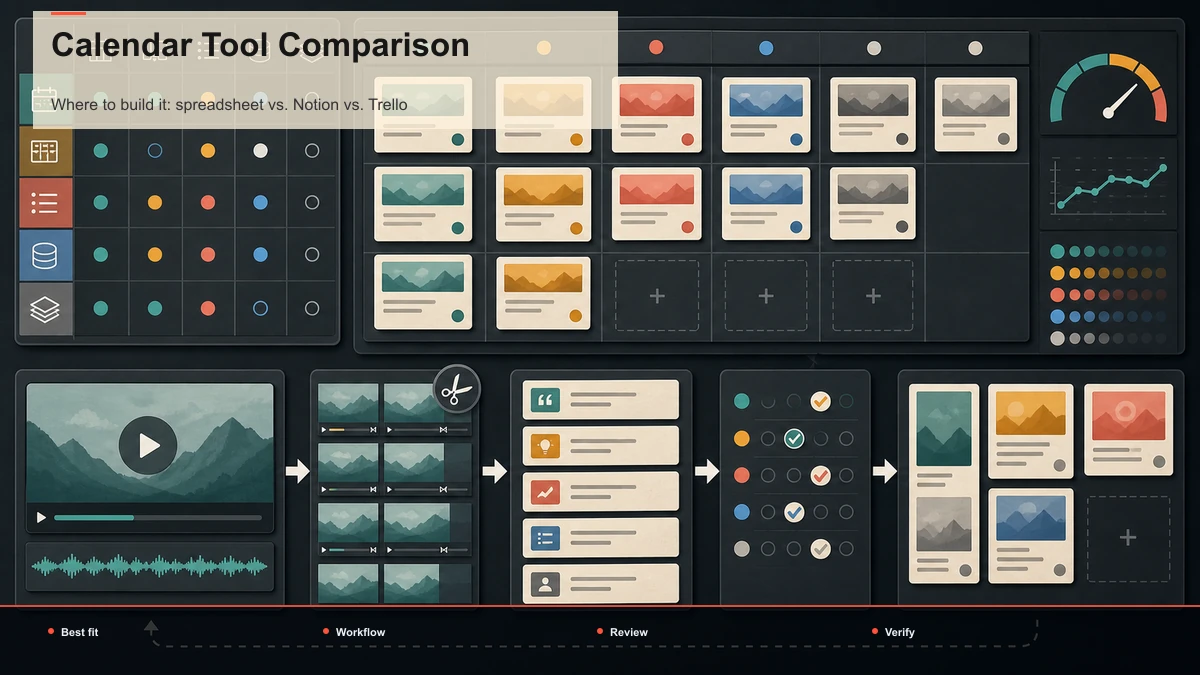
The tool matters far less than the habit, but the right container removes friction. Here's the honest trade-off for a social media video schedule.
| Spreadsheet (Sheets / Excel) | Solo creators who want it working today | No automation; you update status by hand | Notion / Airtable | Multiple platforms, filtered views, light collaboration | Setup time; easy to over-engineer | Trello / kanban board | People who think in "cards moving across stages" | Weak at date-grid overview; export is clunky |
For most solo and small-team creators, a spreadsheet is the correct answer, not the beginner answer. It opens instantly, sorts by date, filters by platform, and never gets in your way. Move to Notion or Airtable only when you genuinely need database views — filtering by status across four platforms, or a teammate updating cards. Kanban boards like Trello suit a "move the card from Editing to Scheduled" mental model, but weaken when you want a month-at-a-glance grid.
Whatever you pick, the fields are the same. Don't let a tool comparison stall you — copy the template into whichever app you already have open and start filling rows.
Balance the mix: the hero / hub / help model
A calendar full of the same video type gets boring fast — for you and your audience. A simple, durable way to plan variety is the hero / hub / help model, borrowed from how large channels structure output.
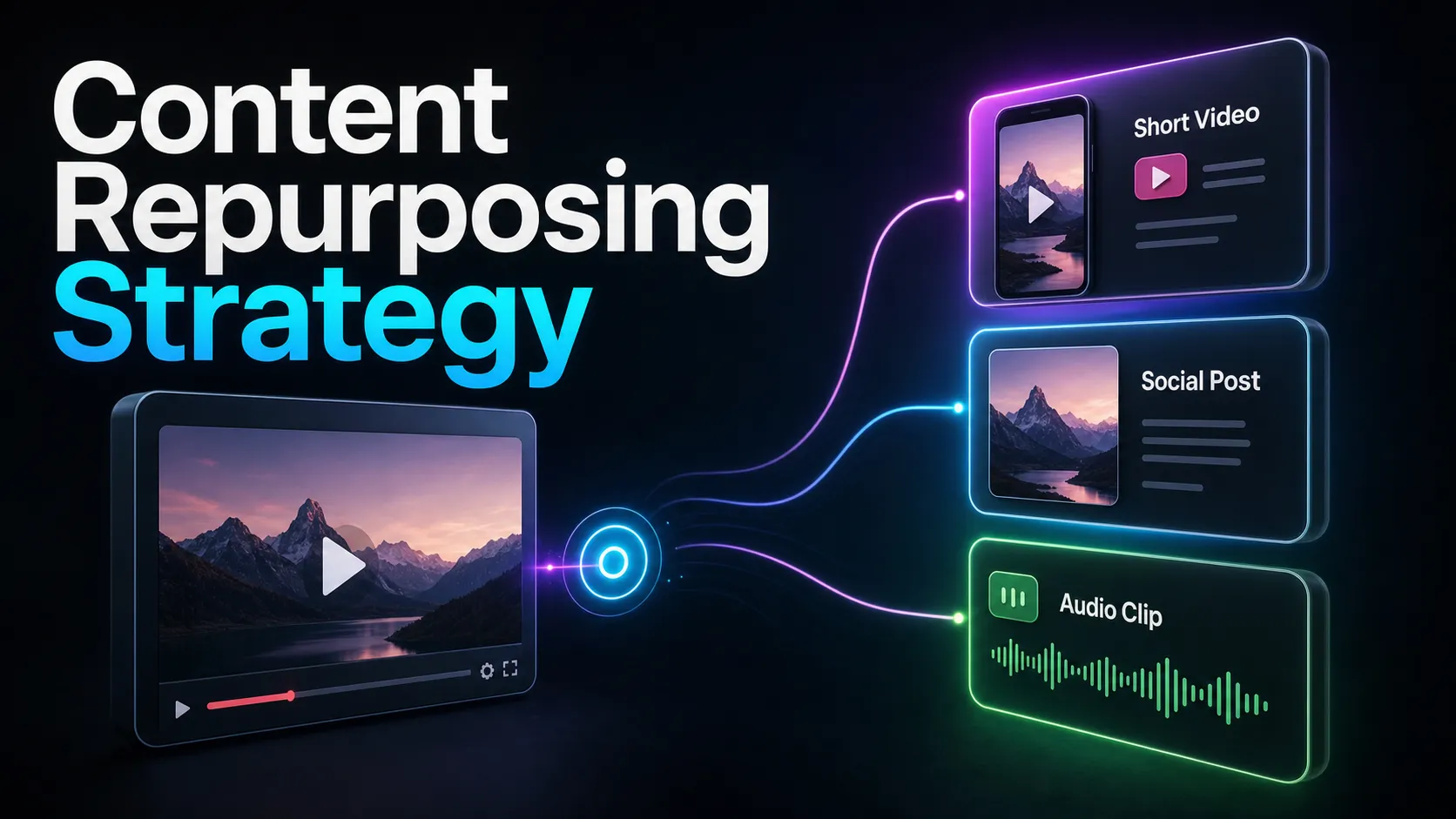
Tag each row with one of the three. Scanning the month, you want a healthy majority of Hub, a steady stream of Help, and the occasional Hero — not five Hero swings you can't sustain. This one tag stops the two most common calendar failures: posting only reactive one-offs, or burning out on nothing but ambitious productions. For turning one topic into a whole content system, see content repurposing strategy.
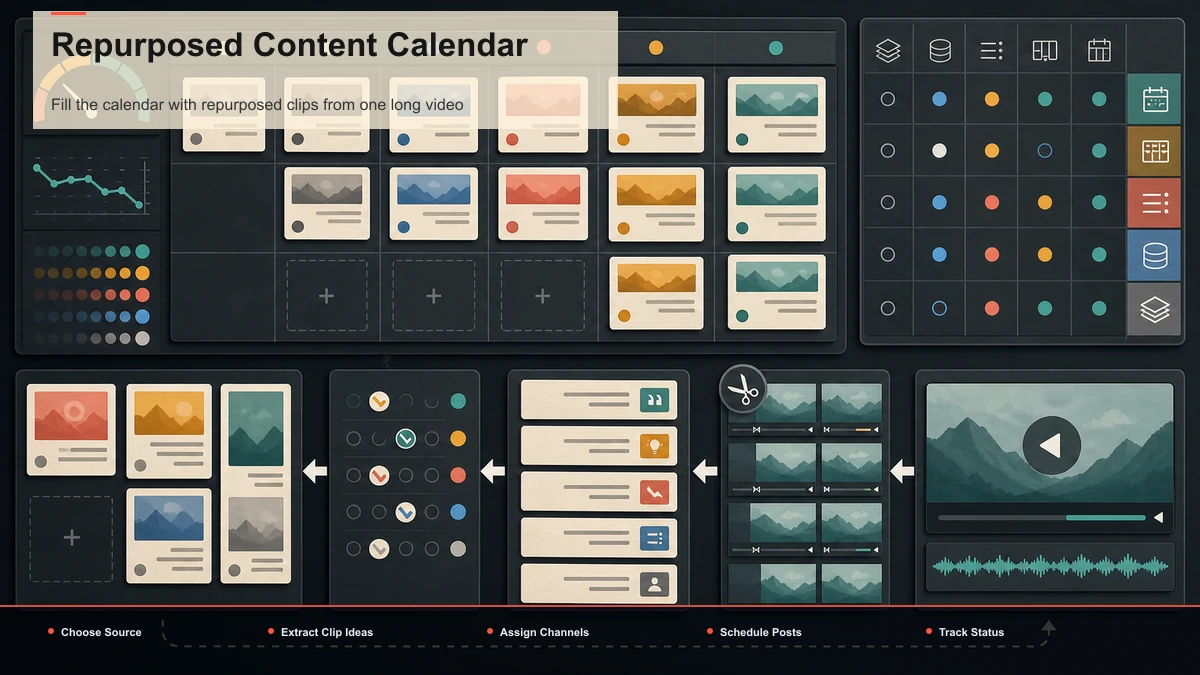
Fill the calendar with repurposed clips from one long video
Here's the section most planning guides skip, and it decides whether your calendar survives past week three. A calendar is only as good as your ability to feed it, and the highest-leverage source of material isn't shooting more — it's cutting more out of what you already recorded.
The move is simple: record one substantial "pillar" video — a talk, tutorial, livestream, interview, or long upload — and treat it as a quarry for a week or two of short-form slots. A single 30–60 minute recording usually holds five to eight genuinely strong short moments, which is most of a week's calendar from one shoot.
Here's how that connects planning to production:
- Record or pick one pillar that maps to a "Source" you've already put in the calendar. This is your only new-content obligation for the batch.
- Surface the clip-worthy moments. Drop the file into a tool like Recapo's long-video-to-short-video AI or AI clip generator to get a first pass at high-signal segments, then treat its picks as candidates — keep the strong ones, cut the filler, re-trim boundaries by hand so each clip opens on the first interesting word.
- Caption and reframe each clip. Add captions (some short-form video is watched without audio), reframe to a vertical 9:16 crop, pick a cover, and export a clean file that uploads anywhere. Recapo runs in the browser with no install, handles common formats like MP4 and MOV, and accepts large source files up to 6GB total per task — which matters when your pillar is a full talk, not a trimmed snippet.
- Drop each clip into a calendar row. Now those empty "Working title" and "Publish date" cells fill themselves. One pillar recording can populate an entire week of Hub and Help slots.
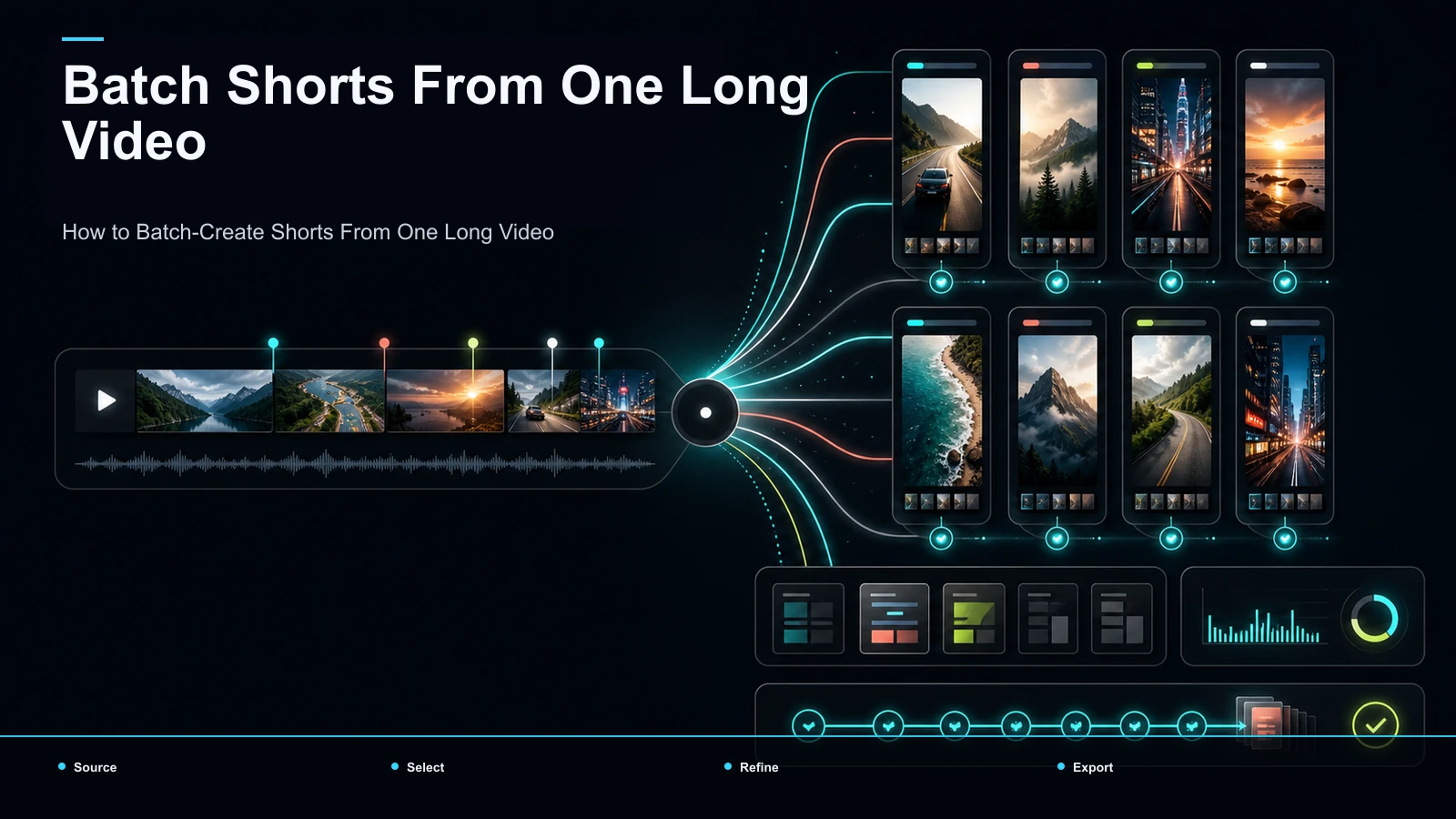
This is the bridge that makes the system work: planning tells you what to post, repurposing gives you the material to post it. For the extraction details — how many clips to pull and how to pick them — see how to batch-create shorts from one video. The rule for your calendar: never plan a slot without knowing which recording will fill it.
Plan a month ahead and batch your production
Planning one week at a time keeps you permanently reactive. Planning a month ahead lets you batch — the biggest efficiency win available to a small creator. Batching means doing one type of task in bulk: record all your pillars in one block, cut all your clips in another, caption and schedule in a third. Context-switching is the tax; batching removes it.
A sustainable monthly rhythm looks like this:
| Month start | Set goals, block Hero/Hub/Help mix for the month | Filled calendar skeleton | Batch day 1 | Record 1–2 pillar videos | Raw material for weeks | Batch day 2 | Clip, caption, reframe, export in bulk | 8–12 finished clips | Weekly, 15 min | Schedule the week, update status, review last week's performance | Calendar stays live |
Two honest notes. First, plan a month of slots but finalize titles only a week or two out, so timely topics can slot in — a rigid month-old plan ignores what's happening in your niche. Second, timing matters less than consistency, but it's free to optimize: once your calendar is running, look at when your audience is actually online and nudge publish times toward it. See the best time to post YouTube Shorts for how to think about that without overthinking it.
FAQ
What is a video content calendar? It's a single document — usually a spreadsheet or database — that lists every video you plan to publish, with fields like publish date, platform, format, status, and the source recording it's cut from. It turns "I should post more" into a concrete, trackable schedule, and doubles as a production tracker showing what's still in editing versus ready to go.
What should a video content calendar template include? At minimum: publish date, platform, working title, format, hook, status, source recording, keyword/topic, CTA, cover, published link, and a notes column. Those twelve fields cover both planning (what and when) and production (where it is in the pipeline). Copy the table above, and delete columns you don't use rather than adding ones you don't need.
How do I keep a content calendar from going stale halfway through? The usual cause is empty slots with no raw material behind them. Fix it at the source: record one substantial pillar video, then repurpose it into five to eight short clips that fill a week of slots at once. When every row traces back to a recording, you never hit a publish date with nothing to post.
Spreadsheet or Notion for a video content calendar? A spreadsheet is the right choice for most solo and small-team creators — it opens instantly, sorts and filters, and never gets in your way. Move to Notion or Airtable only when you need database views, cross-platform filtering, or light collaboration. The fields are identical either way, so start in whatever app is already open.
Build your calendar, then fill it
A video content calendar is the plan; it only holds if you can feed it. Build the template from your real capacity, pick a cadence you can hit on a bad week, balance the mix with Hero/Hub/Help, and — most importantly — tie every empty slot to a recording you can actually repurpose. That last step is where planning becomes production. To turn one long video into a week of clips for those rows, create a free Recapo account and cut your next pillar into publish-ready shorts — captions, vertical reframe, cover, and export — in one browser tab.
References and official sources