Text-to-Speech Video Maker: A Practical Guide
A practical text-to-speech video maker guide: take a script all the way to a finished video — voiceover, captions, vertical reframing, cover.
By the Recapo.ai Editorial Team · Fact-checked July 10, 2026
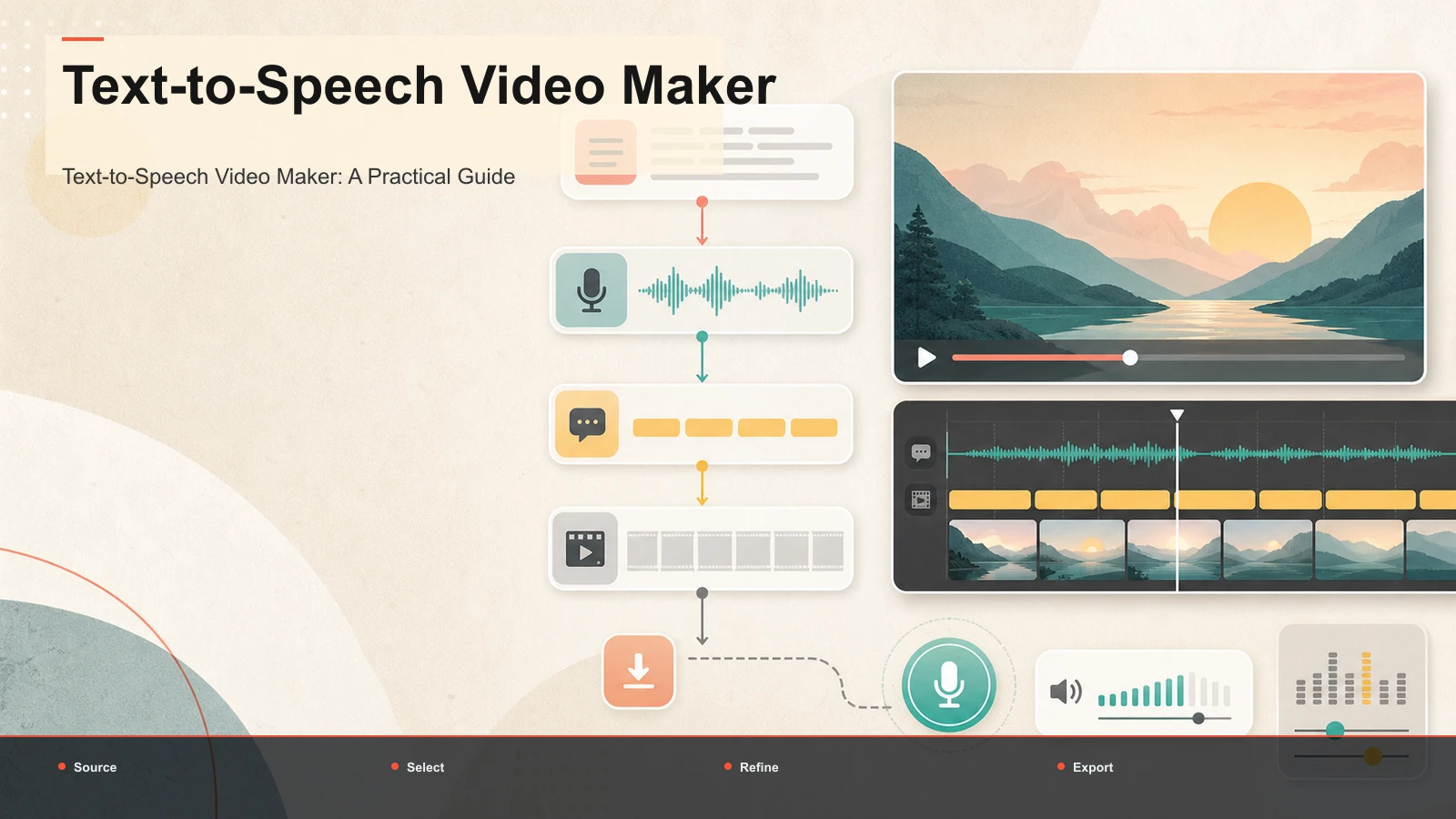
A text-to-speech video maker turns a written script into a narrated video: you paste your words, pick a voice, and the tool generates spoken audio you can pair with footage, images, or a vertical clip to export as a finished file. This guide takes the practical angle most round-ups skip. Instead of ranking generators by feature list, it walks the entire path from script to publish-ready video and shows exactly where text-to-speech fits inside a real faceless workflow — next to captions, vertical reframing, and a cover, not floating on its own.
Search for a tts video maker and the results are wall-to-wall tool pages, each promising multilingual voices, script-to-video conversion, and MP3 or MP4 export. That is useful once you already know what you need. What those pages rarely show is the workflow around the voice — the steps that decide whether your video actually gets watched. Below is that workflow, a voice-selection framework, an honest self-test for picking software, and a straight look at the limits and disclosure rules of AI narration.
What a text-to-speech video maker actually does
At its core, a text-to-speech video maker does two jobs in sequence. First it performs text-to-speech: it reads your typed script aloud in a synthetic voice, the same core technology behind a plain TTS reader. Then it does the part that makes it a video maker — it binds that narration to visuals and exports a video file (MP4) instead of a bare audio file (MP3).
That second job is the whole point, and it is where a text to speech video generator differs from a simple voice reader:
- A TTS reader gives you an audio clip. You still have to open an editor, drop in visuals, sync everything, and render.
- A TTS video maker aims to hand you a finished, watchable video — voice, visuals, and timing already assembled.
The distinction matters because a voice track alone is not content. Nobody watches an MP3. The value is in how cleanly the tool takes you from script to something you can post.
Where text-to-speech fits in a faceless workflow
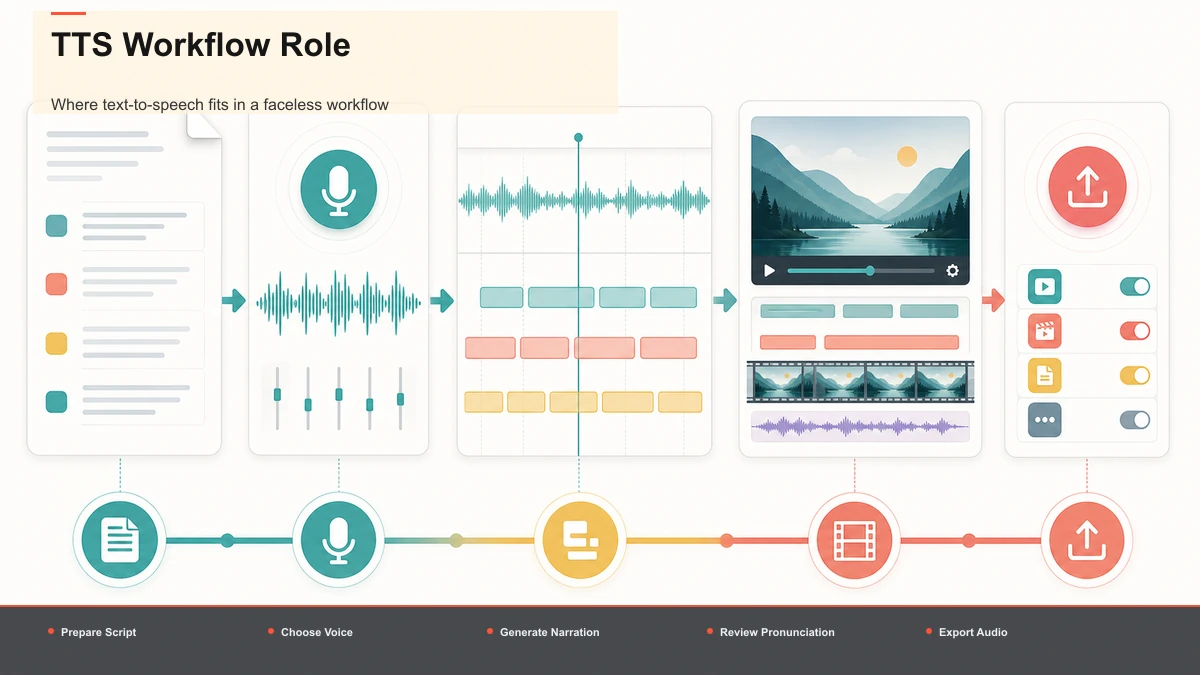
Here is the reframe that changes how you shop for tools: TTS is one stage in a pipeline, not the finish line.
A faceless video — a movie recap, a top-10 list, an explainer, a news roundup — usually runs on the same skeleton:
- A script
- A narrated voice track (this is the TTS step)
- Visuals under the voice
- Captions on top
- The right aspect ratio for the platform
- A cover and a clean export
Text-to-speech handles exactly one of those six. If your tool stops at the voice, you have five more steps to cover somewhere else — usually by exporting your audio and importing it into a second and third app, losing time and a little quality at every handoff. The creators who publish consistently are the ones who collapse as many of those steps as possible into a single session. That is the real reason "turn script into video" is a more useful search than "text to speech" — you are buying the whole path, not one clip of audio.
From script to finished video, step by step
Here is the practical pipeline. Everything below can run in a browser, so there is nothing to install and no local render queue to babysit.
- Write and tighten the script. Read it out loud first. TTS exposes clumsy sentences instantly — anything that trips your own tongue will trip the synthetic voice. Short sentences and clear punctuation give the engine natural pauses.
- Generate the voiceover. Paste the script, choose a voice and language, and generate the narration. A text-to-speech video tool does this and keeps the audio attached to your project so you are not juggling loose MP3s. If you are narrating over footage you already have, a voiceover maker lays the generated track directly onto the timeline.
- Bring in the visuals. For a recap or list, this is B-roll, screenshots, or licensed clips; for a talking-points video, it might be simple text cards. The voice sets the pace, so match your cut points to the narration, not the other way around.
- Add captions. Some Shorts, Reels, and TikTok views happen without audio, so on-screen text is not optional. Because you started from a script, captions can be generated straight from the same words — auto-captions sync them to the voice track for you.
- Reframe to the platform's shape. YouTube long-form is 16:9; Shorts, Reels, and TikTok are 9:16. Reframe to vertical so the visuals fill the screen instead of sitting letterboxed.
- Add a cover and export. Generate a cover frame, then export the finished MP4 — one download, ready to post.
Done in one place, the slow steps — generating voice, syncing captions, reframing — happen once, in sequence, without round-tripping between apps.
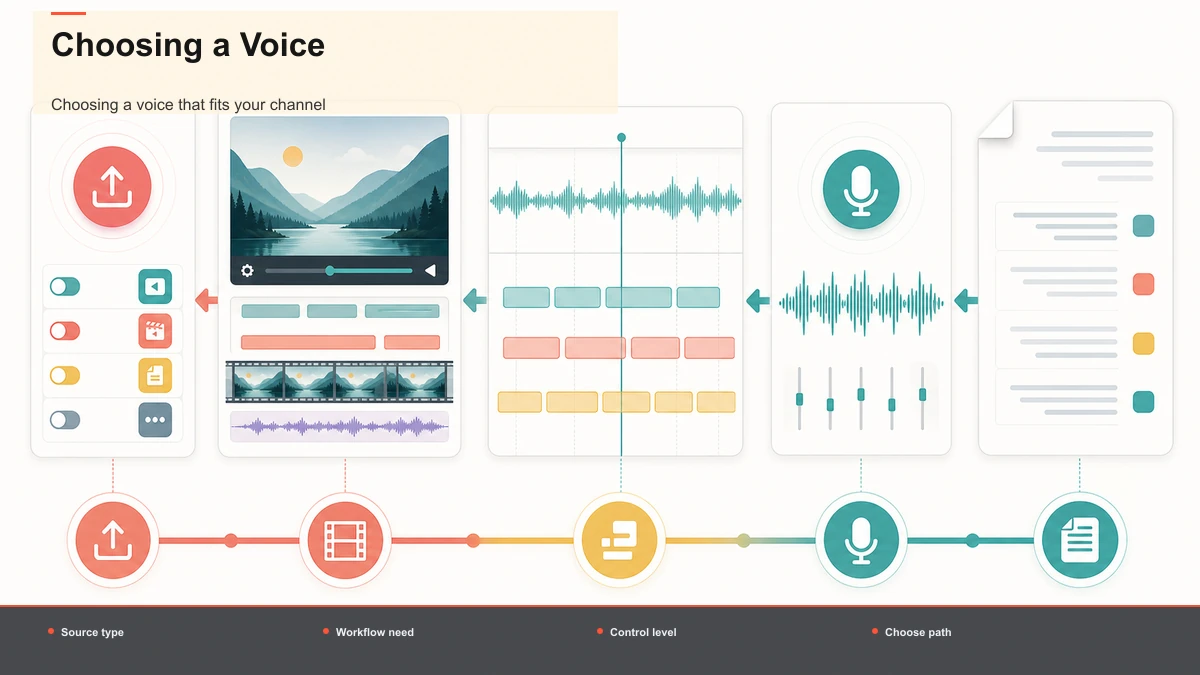
Choosing a voice that fits your channel
The voice is the identity of a faceless channel, so treat selection as a real decision, not a default. Score candidates on these dimensions using your own script:
| What to check | Why it matters | How to test |
|---|---|---|
| Pace | Rushed narration kills retention | Generate 20 seconds and listen at normal speed |
| Naturalness | Obvious robotic delivery loses trust | Play it for someone who didn't write it |
| Pronunciation | Names, brands, and jargon trip up TTS | Feed it your hardest proper nouns first |
| Language / accent | It has to match your audience | Generate the same line in each option |
| Consistency | The voice becomes your brand | Confirm it sounds identical across exports |
A few practical notes. Spell out numbers, acronyms, and unusual names the way you want them spoken — writing "twenty twenty-six" or spacing out an abbreviation often fixes mispronunciation faster than any setting. And pick one voice and stay with it; switching narrators between videos quietly erodes the channel identity you are trying to build.
The parts a TTS-only tool skips
Captions, vertical reframing, and a cover are where TTS-only tools leave you stranded, and they are also where most of the watch-time is won or lost.
Captions. Muted autoplay is the default on every short-form feed. Without captions, a synthetic voiceover is talking to no one. Generating them from your script keeps them accurate and in sync with the narration.
Reframing. A 16:9 export posted to Shorts shows up boxed and small. Converting to 9:16 and keeping the subject framed is the difference between a clip that fills a phone screen and one people swipe past.
Cover and export. A cover frame is your thumbnail — the first thing anyone judges. Exporting a clean MP4 with the voice, captions, and correct ratio already baked in is the last mile.
If your text to video voiceover tool does only the voice, budget for the time and quality loss of stitching these steps together elsewhere. If it does all of them, that stitching disappears.
Comparing TTS video maker tools (a self-test)
The SERP for this keyword is crowded, and the tools genuinely differ in shape. You will see browser-based video editors, all-in-one design suites, dedicated narration apps, and editors built into an operating system — each pitching multilingual voices and script-to-video export. Rather than trust anyone's feature list, including this one, run your own script through a free trial and score each on what actually governs your output:
| Dimension | What to test with your own script |
|---|---|
| Voice quality | Does it sound natural on your script, or flat and robotic? |
| Language coverage | Are your target languages and accents available? |
| Workflow completeness | Voice only, or voice + captions + reframe + export? |
| Export formats | Can you get MP3 (audio) and MP4 (video) when you need each? |
| File handling | Will it accept your real footage sizes without pre-compression? |
| Friction | Truly browser-based, or an install with a render queue? |
Where Recapo fits: it is a browser-based option that covers the whole pipeline rather than the voice alone — generate a voiceover from your script, sync captions, reframe to vertical, add a cover, and export, with no install, common formats like MP4 and MOV accepted, and up to 6GB total per task. Whether it is right for you comes down to how it scores on the test above with your script and your footage, which is the only benchmark that counts. Plan details are on the pricing page.
For a deeper look at narration specifically, see how to record and review a YouTube voiceover; and if you are still choosing a narrator, the best AI voice for YouTube walks through what to listen for.
Disclosure and the honest limits of AI voice
Two honest caveats before you build a channel on synthetic narration.
First, do not expect it to be undetectable. Modern TTS is good, and on clean, well-punctuated scripts it can sound convincingly human — but it still stumbles on sarcasm, emotional swings, unusual names, and long unbroken sentences. Treat the first export as a draft: listen, fix the script wherever the voice sounds off, and regenerate. The quality comes from editing the input, not from expecting perfection on the first pass.
Second, disclosure. YouTube requires creators to disclose when realistic content is made with altered or synthetic media, including AI-generated voices, and other platforms are moving in the same direction. That does not mean you cannot use AI narration — plenty of faceless channels run on it — but you should check each platform's current policy and label your content where required rather than assume the rules do not apply to you. Building the habit now is cheaper than a takedown later.
FAQ
What is a text-to-speech video maker? It is a tool that converts a written script into spoken narration and then binds that narration to visuals, exporting a finished video file rather than just an audio clip. The better ones carry you through the surrounding steps too — captions, vertical reframing, a cover, and export — so a script becomes something you can actually post, not just an MP3.
Can I turn a script into a video automatically? Mostly, yes: you can generate the voiceover, sync captions from the same script, and reframe for the platform without manual editing at each stage. The one step worth doing by hand is choosing and placing visuals, and giving the first export a listen. Full automation gets you a draft fast; a quick human pass is what makes it watchable.
Does AI voice always sound robotic? Not on a clean script, but it is not flawless either. Synthetic voices handle clear, well-punctuated sentences well and stumble on sarcasm, emotion, and unusual names. The fix is to edit the input — rewrite awkward lines, spell out tricky words, and regenerate — rather than expecting the first pass to be perfect. No tool can honestly promise narration that is impossible to tell from a human.
Do I need to disclose AI narration on YouTube? YouTube requires creators to disclose realistic content made with altered or synthetic media, which includes AI-generated voices, and other platforms are adopting similar rules. Check each platform's current policy and label your videos where required. Disclosure does not stop you from using AI voice — it just keeps your channel on the right side of the rules.
Can a text to speech video maker export vertical clips for Shorts? A voice-only tool cannot, but a full workflow can. After generating the voiceover, you reframe the visuals from 16:9 to 9:16, add captions, and export a vertical MP4 sized for Shorts, Reels, and TikTok. That is exactly why it helps to keep voice, captions, and reframing in one place instead of exporting audio and rebuilding the video elsewhere.
Ready to take a script all the way to a finished clip? Create your free Recapo account, paste your script, generate a voiceover, then sync captions, reframe to vertical, and export — all in one browser session. If you are building a faceless channel, owning the whole path from script to post is what lets you publish on a schedule instead of stalling between three different apps.