How to Translate a Video to English (Subtitles + AI Voiceover)
How to translate a video to English two ways — translate the subtitles or add an English AI voiceover. Step-by-step workflows plus idiom-proofing tips.
By the Recapo.ai Editorial Team · Fact-checked July 10, 2026
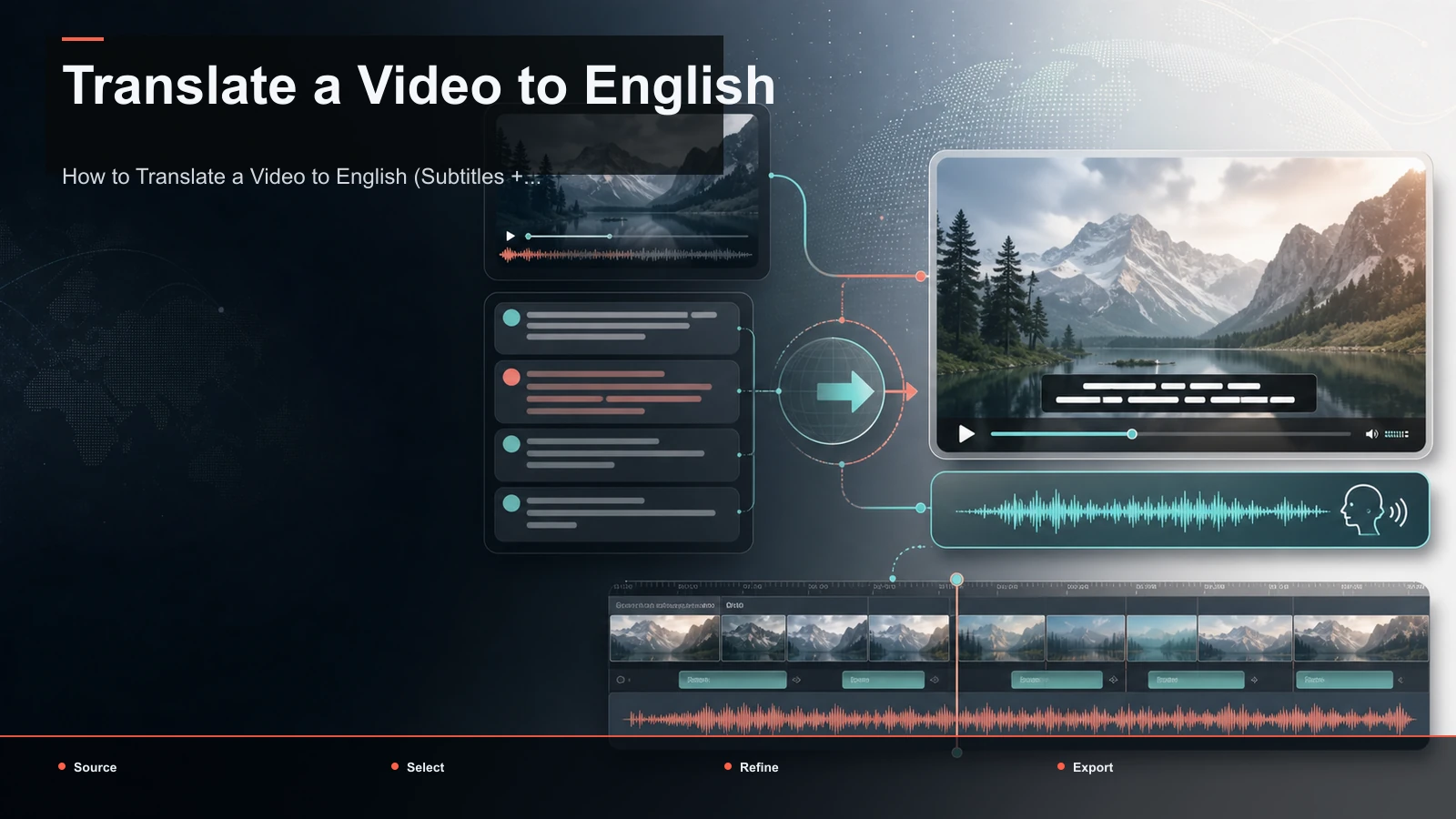
To translate a video to English you have two real paths: translate the subtitles so viewers read along in English, or replace the audio with an English AI voiceover — dubbing. This guide walks through both entirely in the browser, and, more usefully, shows you which one actually fits your video, because picking the wrong path wastes hours. A subtitle translation keeps the original voice and is faster to proof; an English dub reaches viewers who won't read captions but demands you get idioms and pacing right. Below you'll find step-by-step workflows for each, an idiom-proofing checklist most video translator tools skip, and how to combine the two when you're repurposing content for YouTube, TikTok, Shorts, and Reels.
The one thing no tool does for you is judgment: machine translation gets you most of the way, but the idioms, names, and timing that make English read as native are on you.
Information note: This is general information, not legal advice. Copyright outcomes depend on the facts and jurisdiction; primary sources were checked on July 10, 2026.
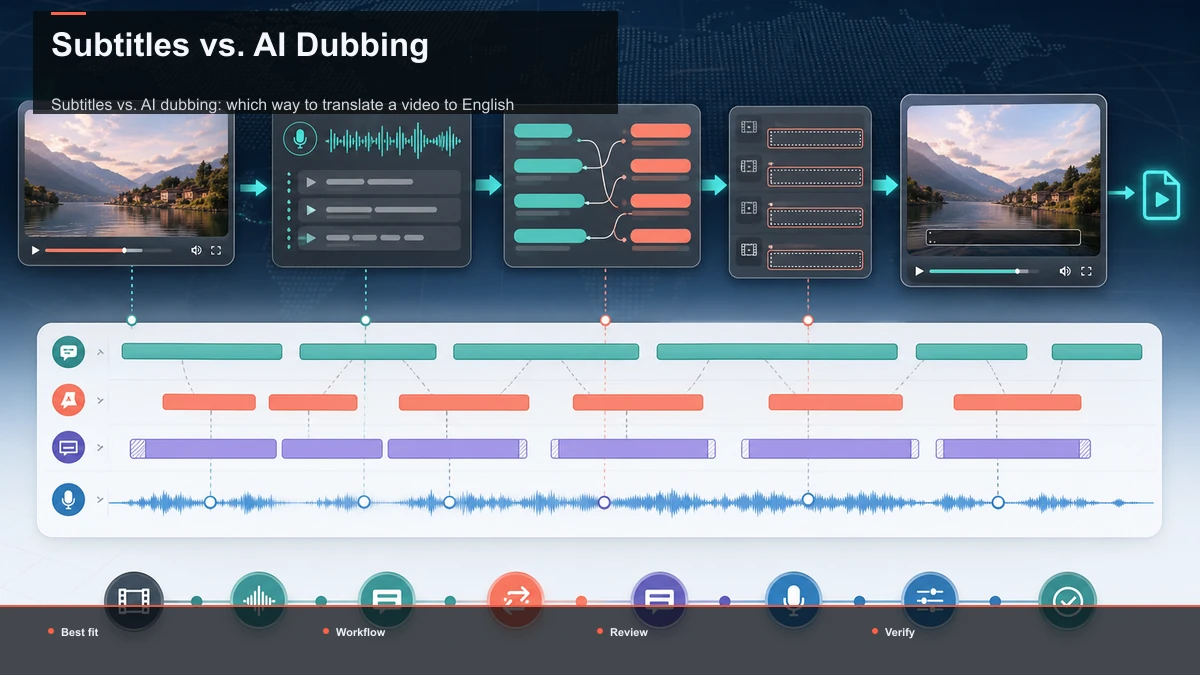
Subtitles vs. AI dubbing: which way to translate a video to English
Before you upload anything, decide which path you're on. Translating subtitles and AI dubbing to English solve the same problem for different audiences, and they fail in different ways.
| Factor | Translate the subtitles | English AI dubbing (voiceover) |
|---|---|---|
| Viewer experience | Reads English text, hears original voice | Hears English, original voice removed |
| Keeps original speaker's voice | Yes | No |
| Speed to produce | Faster — text only | Slower — script + voice + sync |
| Cost of a translation error | Low — easy to spot and fix a line | High — a wrong word is baked into audio |
| Works with sound off | Yes (this is the point) | Only if you also add captions |
| Best for | Interviews, talking-head, anything where the original voice matters | Faceless recaps, tutorials, explainers, listen-while-multitasking content |
A quick rule of thumb: if the speaker is part of the appeal — a founder, a comedian, a musician — keep their voice and translate the subtitles. If the information is the appeal and the on-camera voice is incidental (a recap, a how-to, a news roundup), AI dubbing is one option to test when information matters more than preserving the original voice; subtitles may be preferable when voice and performance matter.
You don't have to choose forever. Plenty of creators translate subtitles first to test whether an English audience even engages, then invest in a dub once a video proves itself. Start with the cheaper, faster path.
Path 1: Translate a video to English with subtitles
This is the fastest route and the safest place to start. You transcribe the original speech, translate that text to English, proof it, then style the captions on screen. Every step runs in a browser tab — nothing to install.
- Upload your video. Bring in your MP4, MOV, or other common format. Recapo handles files up to 6GB total per task, so a long interview or a 4K master both fit without pre-compressing.
- Transcribe the original audio. Use the AI subtitle generator to turn the spoken audio into a timed transcript in the source language. Getting an accurate, well-timed transcript first is what makes the English translation clean — garbage timing in, garbage subtitles out.
- Translate the transcript to English. Convert the timed lines to English. Machine translation will do the heavy lifting; treat its output as a draft, never a final.
- Proof for idioms, names, and reading speed. This is the step that matters — it gets its own section below. Read every line as an English speaker would, not as a literal rendering of the source.
- Style and place the captions. Set font, size, and position so text never covers faces or on-screen graphics. The video caption generator lets you control the look and burn the English captions in for platforms that strip uploaded subtitle files.
- Export. Ship a burned-in version for social feeds, or keep a separate subtitle file if the destination supports uploading one (more on that in the platform section).
Because everything is browser-based, this doubles as a way to translate a video to English free of any desktop software — you upload, work, and export in the same tab; Recapo's own plan details live on the pricing page. If your project is subtitle-heavy — multiple languages, long runtimes, tight timing — our deeper guide on how to translate subtitles covers timing conventions and multi-language handling in detail.
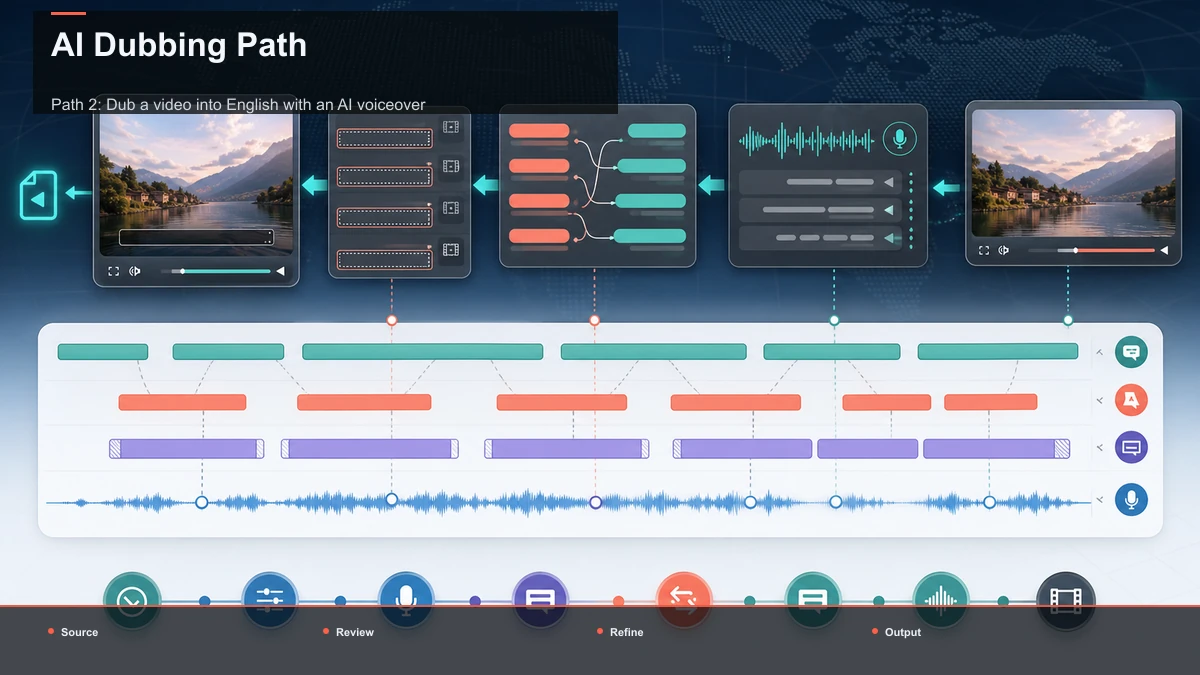
Path 2: Dub a video into English with an AI voiceover
AI dubbing to English replaces the spoken track with a synthetic English voice. It's the standard for faceless channels and any format where viewers want to listen, not read. Here's the honest workflow — including where it gets fiddly.
- Get an English script. Start from your translated, proofed transcript (Path 1, steps 2–4). A dub is only as good as the script behind it, so do the idiom proofing before you generate a voice, not after.
- Generate the English voice. Paste the script into the voiceover maker, choose a voice that matches your channel's tone, and generate the track. Audition two or three voices on the same paragraph — the same script can sound warm or clinical depending on the voice.
- Fix pronunciation at the script level. English AI voices stumble on homographs ("read," "lead," "live"), acronyms, and numbers. Rewrite the ambiguous word or spell it phonetically, then regenerate just that line rather than the whole track.
- Sync to the picture. Slide the English audio so key lines land on the shots they describe. Translated speech is rarely the same length as the original — English is often wordier than the source, or shorter — so you'll trim pauses or nudge cuts to keep narration and visuals aligned.
- Handle the original audio. Either remove the original voice entirely, or duck it far under the English track if you want a faint "original language" bed for authenticity. Keep music and effects; they usually carry across languages fine.
- Add captions anyway. Even a dubbed video benefits from English captions, because some feed views happen without audio. Generate them from the same script so text and voice stay in lockstep.
For the craft side of narration — pacing, pauses, making a synthetic voice sound human — our guide on how to record and review a YouTube voiceover goes deeper than we can here. The dubbing-specific catch is length: budget time for the sync pass, because that's where amateur dubs fall apart.
The proofreading pass machine translation skips
This is the difference between a video that feels made-for-English and one that reads as "translated." Machine translation is literal; English is idiomatic. Run every translated line through these four filters before you burn captions or generate a voice.
1. Idioms and figures of speech. Literal translation is where MT embarrasses you. A phrase that's natural in the source language often lands as nonsense word-for-word. Rewrite for meaning, not words:
| Literal machine output | Natural English |
|---|---|
| "He is a very big shot person" | "He's a big deal" |
| "Please open the light" | "Turn on the light" |
| "I very like this song" | "I really like this song" |
| "This food is too much delicious" | "This is so good" |
| "Give you some color to see" | "Teach them a lesson" |
2. Names, places, and brands. MT loves to "translate" proper nouns it shouldn't, or transliterate them inconsistently. Lock the spelling of every person, place, and product, and use the same spelling every time it appears.
3. Units, dates, and currency. Convert or annotate for an English-speaking audience: metric where the original used imperial (or note both), and date formats that won't be misread. Leaving "10/12" ambiguous is a small error that quietly confuses.
4. Reading speed and line length. For subtitles specifically, translated English is often longer than the source. Trim wordy lines so each caption is one or two short lines and stays on screen long enough to read comfortably — a rushed, wall-of-text caption is worse than a slightly looser paraphrase. For a dub, read the English line aloud against the clip; if you can't say it at a natural pace in the time available, cut words.
Do this pass once, carefully, and you've done the 20% that tools can't. Skip it and no amount of voice quality will save the video.
Do both: English captions over an English voiceover
The highest-reach option is a dub and captions. An English voiceover serves people who listen; burned-in English captions serve the muted-scroll majority and viewers who are hard of hearing. Together they cover both, plus they reinforce comprehension for non-native English speakers in your global audience.
The efficient way to build this is to translate and proof once, then reuse that single English script for both outputs: feed it to the voiceover maker for the dub and to the video caption generator for the on-screen text. One proofed script, two synced deliverables — no double translation, no drift.
Translating a YouTube video and other platform notes
"Translate YouTube video" usually means one of two jobs: making your own YouTube upload accessible to an English audience, or repurposing a long YouTube video into English-language shorts. The platform you publish to changes how you deliver the translation.
- YouTube (long-form). You can upload a translated English subtitle file directly, so a subtitle-only translation is often enough — viewers toggle captions on. For reach, though, a dubbed audio track or a fully English cut tends to outperform captions alone with international audiences.
- YouTube Shorts, TikTok, Instagram Reels. These favor burned-in captions — uploaded subtitle files aren't reliably shown, and some viewing is muted. Burn the English text into the video and keep lines short for small screens.
- Repurposing long to short. If you're translating a long video and cutting it into English shorts, translate first, then clip — so every short inherits the proofed English text and voice instead of you re-translating each clip.
One rule across every platform: only translate and republish content you made or have the rights to use. Translating someone else's video doesn't grant you a license to it — that's a copyright question, not a language one, and it's the same on YouTube, TikTok, and everywhere else.
FAQ
How do I translate a video to English for free? Use a browser-based workflow so there's nothing to install: upload your video, transcribe the original audio into a timed transcript, translate that text to English, proof it, then either burn in English captions or generate an English voiceover — all in the same browser tab. Recapo's own plan details are on the pricing page.
Should I translate the subtitles or use AI dubbing? Translate subtitles when the original speaker's voice matters — interviews, talking-head, personality-driven content — and when you want the fastest, easiest-to-proof result. Test AI dubbing when information matters more than the on-camera voice, and compare it with translated subtitles for accuracy, audience response, rights, and cost. When in doubt, translate subtitles first to test engagement, then dub the videos that earn it.
Can AI dubbing match the speaker's lip movements? No — AI dubbing replaces the audio but doesn't reshape the speaker's mouth, so a talking-head dub won't be perfectly lip-synced. Minimize the mismatch by matching the English line's length and pacing to the original delivery. It's a non-issue for faceless formats and recaps where the speaker isn't on camera.
Is machine-translated English good enough to publish as-is? Not on its own. Machine translation is a strong first draft, but it renders idioms literally, mishandles names, and produces lines that are often too long to read comfortably. Always run the proofing pass — idioms, names, units, and reading speed — before you burn captions or generate a voice. That human edit is the difference between "translated" and native-sounding English.
How do I translate a YouTube video into English? For your own long-form uploads, add a translated English subtitle file or a dubbed audio track. For Shorts, Reels, or TikTok, burn the English captions into the video since uploaded subtitle files aren't reliably displayed and some viewing is muted. If you're cutting a long video into English shorts, translate the transcript once, then clip, so every short inherits the same proofed text. Only do this with content you own or have rights to.
Translate your next video into English
Pick your path: translate the subtitles for a fast, faithful version that keeps the original voice, or dub it into English with an AI voiceover for listen-anywhere reach — or do both from one proofed script. Upload your file, transcribe it with the AI subtitle generator, translate and proof the text, then burn in English captions with the video caption generator or generate an English track with the voiceover maker. It all runs in your browser, on uploads of up to 6GB total per task. Create your free Recapo account and translate your next video into English today.
References and official sources
- YouTube Help: Create a Short
- YouTube Help: Add subtitles and captions
- YouTube: Getting your videos discovered
- Recapo.ai: Product overview and current upload limits
- Recapo.ai: AI Video Editor
- YouTube Help: How Content ID works
- YouTube: Copyright and fair use
- U.S. Copyright Office: Fair Use Index
- 17 U.S. Code § 107: Fair use